Home › Image Resizer to KB › Increase Image Size to 200KB
Increase Image Size to 200KB
Reach exactly 200KB for forms that reject files below that.
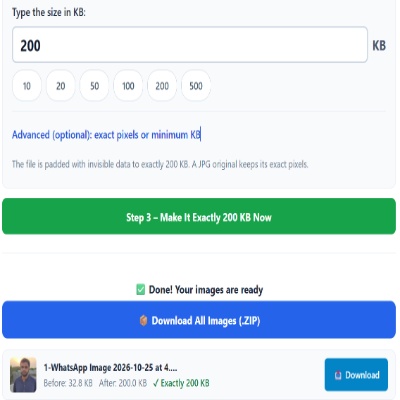
Advanced (optional): exact pixels or minimum KB
Many forms ask for pixels as well as KB. Leave empty if yours does not. Examples are common sizes only – always use the size your form states.
✅ Done! Your images are ready
200KB as a floor
Forms that ask for a full-page scan often want at least 200KB. This avoids thumbnail-quality uploads. If your scan is valid but small because it is greyscale or has a lot of white, padding is a legitimate way to reach the number.
Alternatives
- Scan at 200 DPI instead of 100 DPI and the file grows naturally with more detail.
- Photograph in good light; noisy low-light photos produce larger files without being clearer.
Do not
- Pad a file that already has errors in its content. The portal may still reject it for readability.
- Mix up 200KB with 2MB. The box is in KB.
If you can rescan, rescan
A 200KB floor on a scanned document usually means the portal expects a real scan, not a thumbnail. Most scanner apps have a quality or resolution setting. Raising it and scanning again gives a genuinely detailed 200KB file (204,800 bytes is the target here), where padding only adds empty bytes. Scan flat, in even light, and keep the page edges inside the frame. Use padding on this page when the paper original is no longer with you.
Questions about: Increase Image Size to 200KB
Is 200KB padding the same as upscaling?
No. Upscaling enlarges pixels. Padding adds invisible bytes.
Will the file open normally?
Yes, in every viewer, because the padding sits inside a standard JPG comment block.
Can I also set exact pixels?
Yes, in Advanced options. Then the image is redrawn at that size before it is padded.
About the Increase Image Size to 200KB tool
Use this page to bring a small file up to exactly 200KB when a portal sets a minimum size. The tool adds invisible padding to a JPG, so your picture looks the same and keeps its pixel size.
How to use the Increase Image Size to 200KB tool
- Tap “Select Images” and choose your JPG, PNG, WebP or HEIC file.
- Make sure Increase (make bigger) is selected and the size box shows 200, or type the size your form states.
- Choose Increase (make bigger), then make sure the box shows 200.
- Press the green button, check the Before and After sizes, then download the file (or the ZIP if you added several).
More questions about Increase Image Size to 200KB
Which file types can I upload to reach 200KB?
JPG, PNG, WebP and HEIC files are accepted. The result is always a JPG.
What if my file is already larger than 200KB?
The tool first re-saves it smaller and then pads it to 200KB, and the result notes that the original was bigger.
Related sizes and tools
Need the opposite? Try Compress image to 200KB.
Every ready-made size is listed on the Image Resizer to KB page. Prefer a percentage instead of a KB size? Use the quality-based image compressor, or read our image guides.