Home › Image Resizer to KB › Increase Image Size to 100KB
Increase Image Size to 100KB
Make a smaller image reach exactly 100KB for a minimum-size field.
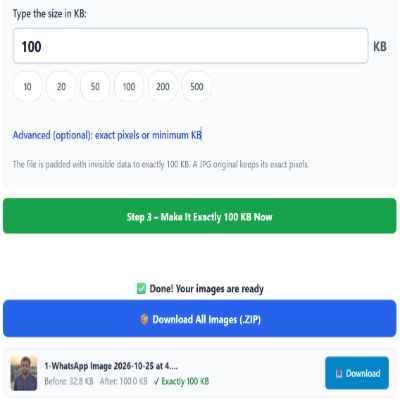
Advanced (optional): exact pixels or minimum KB
Many forms ask for pixels as well as KB. Leave empty if yours does not. Examples are common sizes only – always use the size your form states.
✅ Done! Your images are ready
100KB as a minimum
A 100KB floor mostly shows up on document uploads, where a very small file is likely an unreadable scan. Your pages may be perfectly readable and still too small, for example a black-and-white scan saved with high compression. Padding keeps your readable scan and meets the minimum.
If the document is not readable
If the issue is that the page really is unclear, padding will not help. Re-scan at a higher resolution, then use Compress to 100KB if the result lands above the limit.
Frequent errors
- Padding to 100 when the form wants 100–200KB and the file is then compressed again by the upload widget.
- Typing 1 instead of 100 in the box.
Questions about: Increase Image Size to 100KB
Is padding allowed by the form rules?
The tool only changes file size, not content. Whether the rules allow it is between you and the portal; if in doubt, upload a genuinely better scan.
Can I pad a PDF?
No. The tool works on images and outputs JPG.
How do I know it worked?
The result shows the size before and after. Check it reads 100 KB.
About the Increase Image Size to 100KB tool
Use this page to make a small image exactly 100KB. It suits forms that require a minimum file size. The tool adds invisible padding data, so your picture keeps its look and, for a JPG, its exact pixels.
How to use the Increase Image Size to 100KB tool
- Tap “Select Images” and choose your JPG, PNG, WebP or HEIC file.
- Make sure Increase (make bigger) is selected and the size box shows 100, or type the size your form states.
- Check that Increase (make bigger) is selected and that the size box shows 100.
- Press the green button, check the Before and After sizes, then download the file (or the ZIP if you added several).
More questions about Increase Image Size to 100KB
Which file types can I upload to reach 100KB?
JPG, PNG, WebP and HEIC files are accepted, and the result is a JPG.
Can I make several images 100KB at once?
Yes. Select them together and each is padded to 100KB. Download them one by one or as a ZIP.
Related sizes and tools
Need the opposite? Try Compress image to 100KB.
Every ready-made size is listed on the Image Resizer to KB page. Prefer a percentage instead of a KB size? Use the quality-based image compressor, or read our image guides.