How to Reduce Image Size for a 100KB Upload Limit
By Yasir, Lahore · Published October 17, 2026 · Updated October 24, 2026 · All guides
Some job portals, forms and other websites have file-size limits such as 100KB. A modern phone camera can produce files much larger than that, so reducing the file size can require substantial compression. Below is how to get a photo under 100KB on CompressPicOnline. The easiest way is the exact-KB tool: type 100 and it fits your photo under that size automatically. If you prefer to compress with percentage presets, the steps below show how to choose them and check the result.
Quick tool: Compress Image to 100KB – type the KB and download.
Why phone photos are so large
A photo from a 12-megapixel phone is roughly 4000 by 3000 pixels. That is 12 million pixels, each storing colour information. JPG compression throws away detail your eyes barely notice, but a file of that size still ends up in the megabytes. A form field that displays your photo at 200 by 250 pixels does not need all those pixels, which is why reducing size is almost always possible with little visible loss.
The two things that control file size
Dimensions (width and height in pixels) and quality (the JPG compression level) both affect file size. Halving the width and height cuts the pixel count to a quarter. Lowering the quality setting can also reduce the file size, but the amount varies from image to image. On CompressPicOnline you can either type the KB you need in the exact-KB tool, or choose a percentage quality preset on the homepage and then check the actual Before and After sizes.
Getting a photo under 100KB
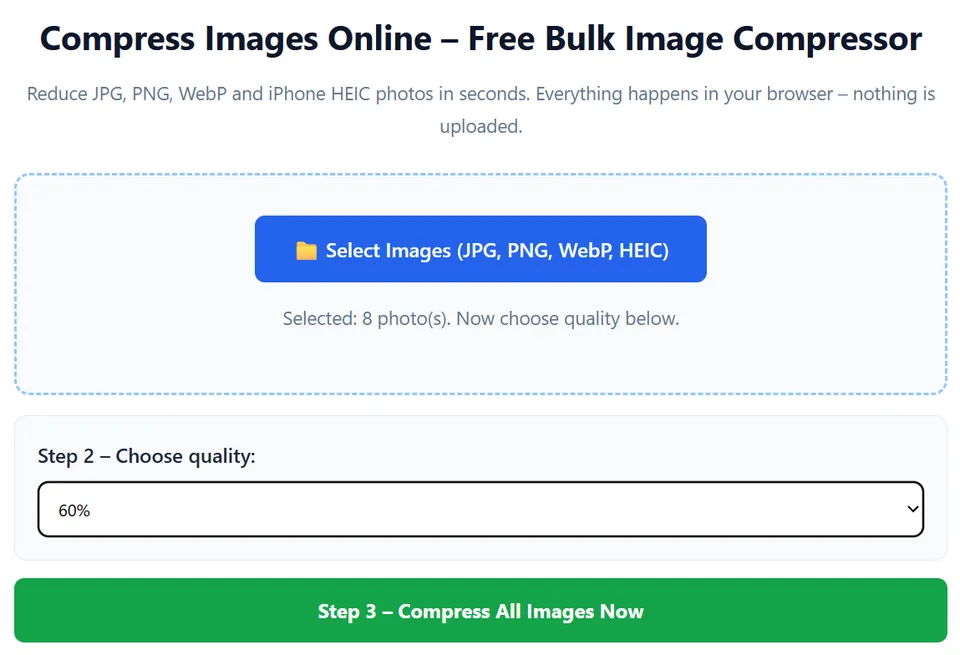
- Open the free image compressor and press Select Images. You can choose one photo or many at once.
- Pick 60% as a starting point. The result may be below, near or above 100KB depending on the original image.
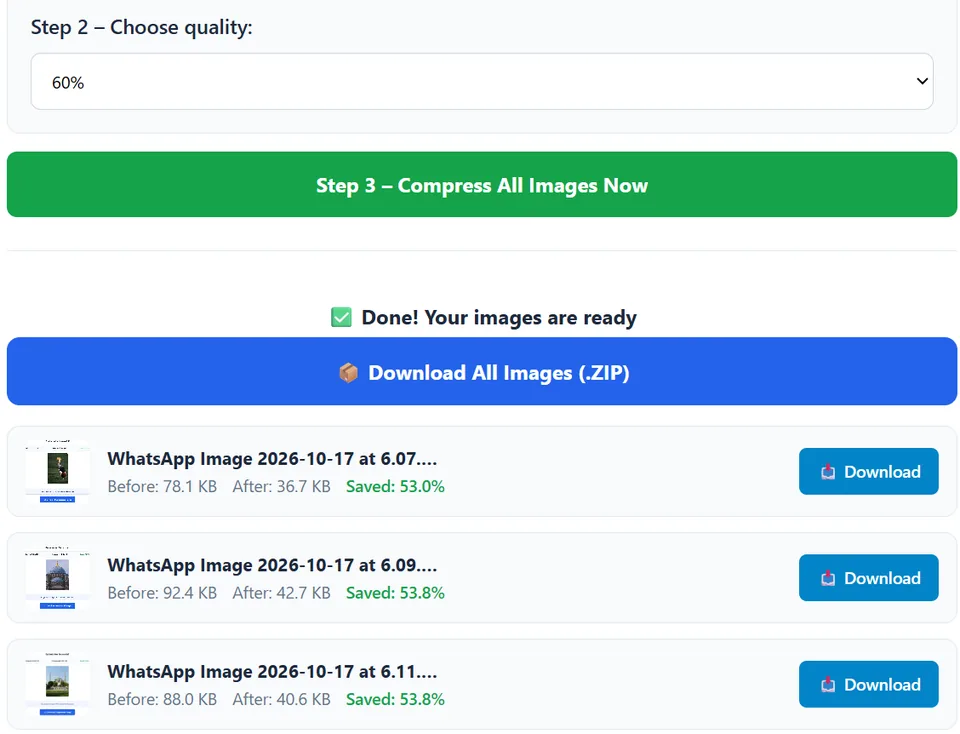
- Press Compress All Images Now. Each result shows a Before and After size in KB.
- If the After value is still above 100KB, try 40% on the original image, or resize/crop the image first if the upload limit is strict.
- Download the image directly, or grab every file at once as a ZIP.
Which setting should you try?
- 80%: a balanced starting point when you want good quality with some size reduction.
- 60%: a stronger compression level for tighter upload limits such as 100KB.
- 40%: useful when a smaller file is required, but quality loss becomes more noticeable.
- 25%: very strong compression for strict limits or small previews; detailed photos may look soft.
These percentages are starting points, not fixed file sizes: a 2MB photo and an 8MB photo can produce very different results at the same percentage. If a form has a strict 100KB limit, use the Compress Image to 100KB tool instead, and still check the After size before uploading.
Tips for better results
Start from the original. Every time a JPG is re-saved it loses a little more detail. If a form needs 50KB, compress the original photo once at a stronger setting instead of compressing a compressed file several times.
Crop first. Removing empty space around a subject lowers the pixel count and file size before compression even begins. Most phone gallery apps include a crop tool.
Use JPG for photographs. PNG files keep every pixel exactly and are much larger for photos. Our compressor converts PNG and WebP images into optimised JPG, which is usually what forms expect.
Screenshots and text. Images with sharp text or thin lines show compression artefacts sooner. Keep these at 80% or higher and accept a somewhat larger file.
Check the file extension. Some portals accept only .jpg or .jpeg. Our output is always a standard JPG, so this is covered.
Why not just use an app?
Many compression apps and websites upload your picture to a remote server. For identity photos, signatures and documents that is a privacy risk. CompressPicOnline processes everything inside your own browser, so the file never leaves your phone or computer. It also works for dozens of images at once, which helps when you are preparing documents for several family members.
Troubleshooting
The file is still too big. Compress again at a lower quality, or crop and resize the photo before compressing. Very large source images may need two passes.
The photo looks too soft. Move up one quality step, for example from 40% to 60%, and reduce the image dimensions instead.
The portal says the dimensions are wrong. Some forms require exact sizes such as 200 by 230 pixels. Resize with your phone editor first, then compress for file size.
The result is larger than the original. This can happen with images that were already heavily compressed. In that case the tool keeps your original file so you never get a worse result.
Frequently asked questions
Can I get a file under 100KB for sure?
Yes, with the Compress Image to 100KB tool. Type 100 and it tries different quality levels, and reduces dimensions only if needed, so the JPG stays under 100KB (it aims just below 100,000 bytes, so it passes whether a site counts 1KB as 1,000 or 1,024 bytes). The percentage presets on the homepage do not work this way: a fixed percentage gives a different size for every photo. Always check the After size, and keep the original for printing or professional work.
Can I prepare many photos for a 100KB limit together?
Yes. Select them all and compress them in one go. Check each After size in the results list and adjust individual images if a form requires every file to stay below a specific limit.
Does it work on mobile?
Yes. The tool runs in any modern mobile browser, including Chrome and Safari, with no app install.
👉 Open the free image compressor
Further reading
If you want the technical background, start here:
Related guides
- Convert HEIC to JPG
- Reduce Image Size for a Faster Website
- How to Compress Images for WhatsApp Without Losing Quality
- Passport, ID and Signature Photo Size in KB: How to Meet the Limit
- JPG vs PNG vs WebP: Which Image Format Should You Use?
- How to Compress Images for Email and Fix "Attachment Too Large"
- All guides