What Is Image Compression? Lossy vs Lossless Explained
By Yasir, Lahore · Updated October 21, 2026 · All guides
A single photo from a modern phone can weigh several megabytes, yet the same picture can often be shared at a fraction of that size and still look good on screen. The technique that makes this possible is image compression. This guide explains in plain language how it works, how lossless and lossy methods differ, and how to choose a quality setting without guessing.
What image compression actually does
A digital image is a grid of pixels, and every pixel stores colour information. Stored naively, a 12-megapixel photo would need millions of colour values, which adds up to a very large file. Compression is a set of mathematical shortcuts for describing the same grid with fewer bytes. Some shortcuts rewrite the data more efficiently without changing anything you can see. Others deliberately simplify the picture in places where the human eye is unlikely to notice. Those two families are called lossless and lossy compression.
Lossless compression: smaller without losing a pixel
Lossless compression works a little like writing "twenty blue pixels in a row" instead of listing blue twenty times. When the file is opened, the original pixel data can be rebuilt exactly. PNG is the best-known lossless format on the web. It is a good fit for logos, screenshots, diagrams and anything with flat colours or sharp text, because those images contain many repeated areas that compress well.
The drawback is that detailed photographs contain very little repetition. A lossless file of a photo therefore tends to stay large, which is why photographs are usually shared in a lossy format instead.
Lossy compression: smaller by discarding detail you barely notice
Lossy compression accepts a trade. It permanently throws away some information in exchange for a much smaller file. JPG is the classic example. It takes advantage of the fact that our eyes are more sensitive to changes in brightness than to tiny changes in colour, and that fine texture in busy areas such as leaves or fabric is hard to notice when it is slightly simplified.
At a moderate setting the difference is difficult to see on a phone or laptop screen. At an extreme setting you start to notice blocky patches, fuzzy edges around text and banding in smooth skies. Once that detail has been removed, no tool can bring it back, which is why you should always keep your original file.
How JPG, PNG and WebP compare
- JPG: lossy, no transparency, excellent for photographs and accepted almost everywhere.
- PNG: lossless, supports transparency, ideal for graphics and screenshots but large for photos.
- WebP: can be lossy or lossless, supports transparency and is often smaller than JPG or PNG at similar quality, although some older software and upload forms still reject it.
CompressPicOnline saves every result as a standard JPG, because that is the format most forms, email clients and messaging apps accept. For a deeper look at the formats, read our guide on JPG vs PNG vs WebP.
What the quality percentage means
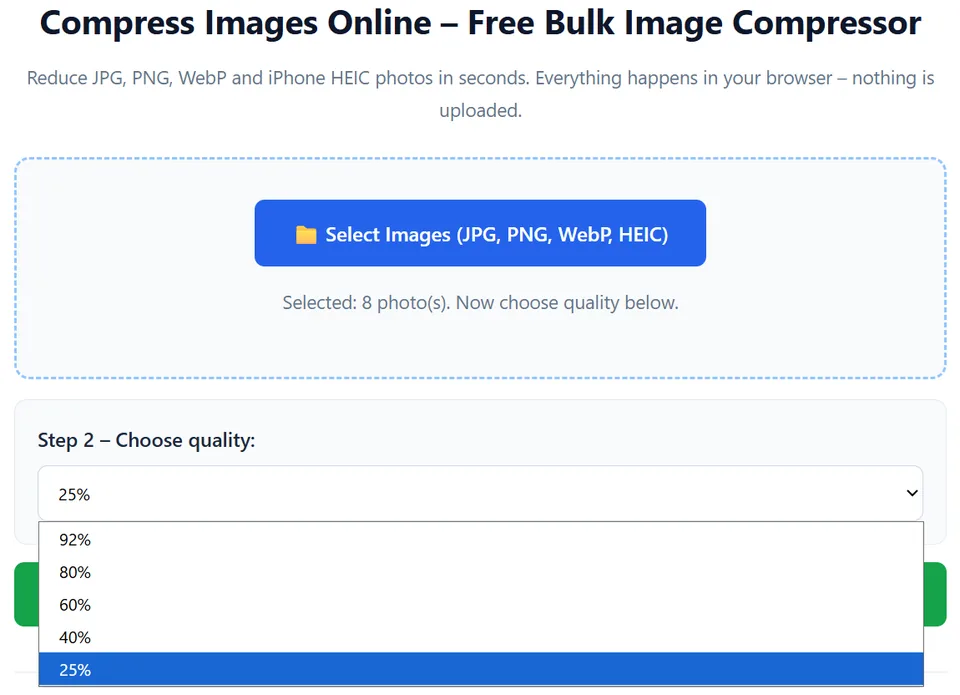
When you choose 80% or 60% in the compressor, you are setting the JPG quality level used by your browser. Higher numbers keep more detail and usually produce larger files. Lower numbers remove more detail and usually produce smaller files.
The percentage is not a promise about size. It does not mean the file will shrink to 80% or 60% of the original. Two photos compressed at the same setting can end up with very different results, because a picture of a plain wall compresses far better than a picture of a crowded street. The reliable way to judge is to read the Before and After sizes shown once compression finishes.
What we saw in a real test
To show how the quality setting behaves, we ran three sample images through CompressPicOnline at every quality level. The table lists the file size after compression and the percentage saved. The first row is the clearest lesson: at 92% almost nothing was saved, while 80% already removed about a third of the file and 60% removed roughly half.
| Quality | Photo 1 was 78.1 KB | Photo 2 was 92.4 KB | Photo 3 was 88.0 KB |
|---|---|---|---|
| 92% | 77.2 KB 1.1% saved | 91.0 KB 1.6% saved | 87.1 KB 1.0% saved |
| 80% | 50.6 KB 35.2% saved | 58.8 KB 36.4% saved | 55.7 KB 36.7% saved |
| 60% | 36.7 KB 53.0% saved | 42.7 KB 53.8% saved | 40.6 KB 53.8% saved |
| 40% | 29.4 KB 62.4% saved | 33.8 KB 63.4% saved | 32.3 KB 63.3% saved |
| 25% | 23.1 KB 70.5% saved | 26.5 KB 71.4% saved | 25.5 KB 71.1% saved |
Treat these numbers as an illustration, not a promise. The sample images were small files of under 100 KB that had already been compressed once, so they behave differently from a large photo straight off a phone camera. Your own results will depend on the image, which is why the Before and After sizes in the results list matter more than any rule of thumb.
A quick experiment you can try
The best way to understand compression is to see it. Pick one photo and compress it at 92%, 80%, 60% and 40%, downloading each result under a different name. Compare the file sizes first, then open each image full screen and zoom into an area with text or fine detail. Most people find that the step from 92% to 80% saves a lot of space with little visible change, while the step down to 40% begins to show softness. Your own eyes on your own photo are a better guide than any rule of thumb.
Why you should not compress the same image again and again
Each time a lossy file is re-saved, the encoder makes fresh decisions about what to discard, and the small errors pile up. This is often called generation loss. A photo that has been compressed, sent through a chat app, downloaded and compressed again can look noticeably softer than the original even though no single step seemed harmful.
Keep the original, compress it once at the strength you need, and use the result for that specific upload or message. If the result is too large or too soft, go back to the original and try a different setting instead of compressing the compressed file.
Choosing the right approach
- Photographs for forms, email and web pages: lossy JPG, around 80% for a balance of size and quality, or 60% when you need a stronger reduction.
- Documents, signatures and screenshots with thin text: stay at 80% or higher, because sharp edges show compression artefacts first.
- Logos and graphics that need transparency: keep the PNG. Our tool outputs JPG and fills transparent areas with white, so it is not the right choice for these.
- Archive or print copies: keep the untouched original and compress only the copies you share.
Common myths about compression
Myth: compression always ruins quality. At moderate settings most people cannot tell the difference on a screen, although close inspection will reveal changes. Myth: smaller is always better. A file that is squeezed too far can look blurry and leave a poor impression on a job form or product page. Myth: a lower percentage always gives a proportionally smaller file. Results depend on the picture, and the extra savings can shrink at very low settings.
Frequently asked questions
Can I undo compression?
No. With lossy compression the discarded detail is gone for good, so keep your original photo in a safe place and use the compressed copy only where it is needed.
Which is better, lossy or lossless?
Neither is better in every case. Lossless keeps every pixel but produces larger files for photos. Lossy produces much smaller photo files at the cost of some detail. Choose according to what the image is for.
Does the tool upload my photos to compress them?
No. The work happens inside your own browser, so your pictures stay on your device.
👉 Open the free image compressor
Further reading
Independent references if you want to go deeper: