Image SEO Basics: File Names, Alt Text and Compression
By Yasir, Lahore · Updated October 21, 2026 · All guides
Images make a page more useful and more attractive, but they are also one of the most common reasons a page loads slowly. Image SEO is the habit of preparing pictures so that both visitors and search engines can understand them and load them quickly. None of it is a trick, and nothing here guarantees a ranking. These are sensible practices that make your pages better for people, which is what search engines say they want to reward.
Why images matter for people and for search
Visitors use images to decide whether a page is worth reading. Search engines cannot see a picture the way a person does, so they rely on clues around it: the file name, the alt text, the caption and the text nearby. Images can also appear in image search results, which sends some visitors to your page directly. Finally, heavy images slow pages down, and slow pages frustrate visitors, particularly on mobile connections.
Start with a descriptive file name
Phone cameras produce names such as IMG_4821.jpg. A name like red-leather-wallet-front-view.jpg tells both people and search engines what the picture shows before anything else is read. Keep file names short, use lowercase letters, separate words with hyphens rather than underscores or spaces, and describe the real content of the image. Avoid stuffing several keywords into one name, because that looks unnatural and does not help anyone.
Write alt text for people first
Alt text is a short description placed in the alt attribute of an image. It is read aloud by screen readers, shown when the image fails to load, and used by search engines as a clue about the image. Good alt text describes what is in the picture in the context of the page, usually in one short sentence. For example, "Hands holding a phone that shows a photo compression result" is more useful than "image" or "compress image online free best tool".
- Describe the picture honestly; do not repeat your target keyword in every image.
- Leave the alt text empty (
alt="") for purely decorative images, so screen readers skip them. - If the image contains important text, include that text in the alt description or in the visible page copy.
Compress before you upload
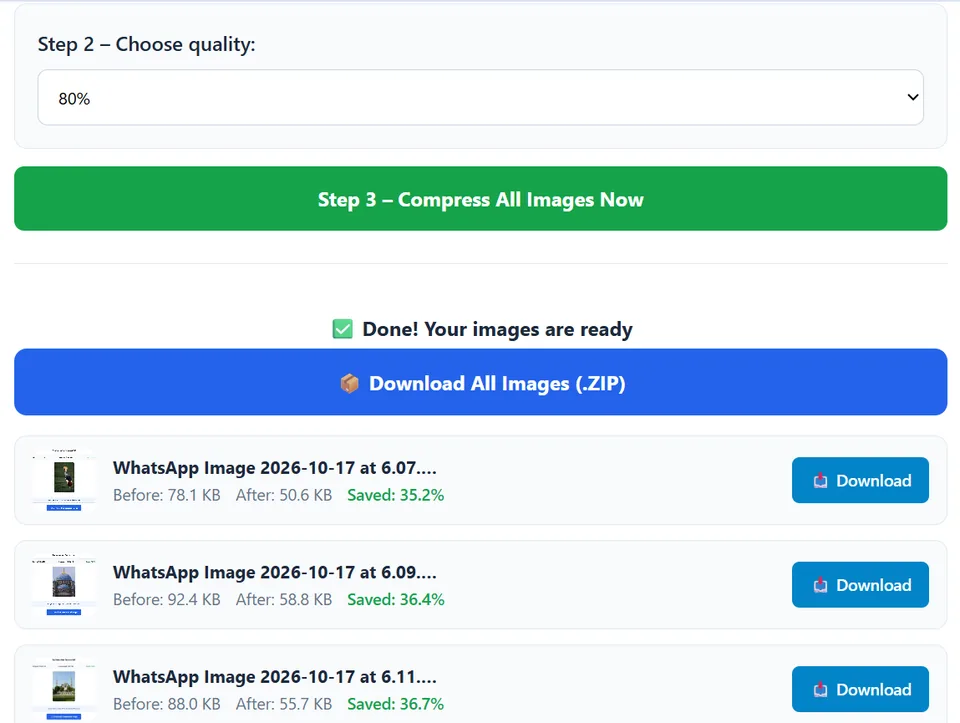
A photo straight from a phone camera is far larger than a blog page needs. Compressing it before upload reduces the data a visitor has to download. With CompressPicOnline you can select many images at once, choose a quality percentage such as 80% for a balanced result, and download everything as a single ZIP. Check the Before and After sizes and look at the result at full width, especially for product photos and images with text. If an image looks soft, use a higher quality setting and accept a larger file for that picture.
Choose sensible dimensions
Compression lowers the quality setting, but dimensions matter too. If your page displays an image at 800 pixels wide, uploading a 4000-pixel original wastes bandwidth even after compression. Resize or crop the image in your phone editor or design tool first, then compress it. Our guide on resizing versus compressing explains how the two steps work together.
Lazy loading and the first image
Modern browsers support the loading="lazy" attribute, which tells the browser to delay images that are far below the visible area until the visitor scrolls near them. This is useful for long articles and galleries. Do not use it on the main image at the top of the page, because that image should load as soon as possible. Also set width and height attributes on images so the page does not jump around while they load.
Give the image context
An image works best when the surrounding text explains it. Place it near the paragraph it illustrates, add a caption when a caption helps the reader, and make sure the page itself is about a clear topic. A picture of a signature-sized scan means more to readers and search engines when it sits inside a guide about signature file sizes than when it floats on a page with no explanation.
A short checklist before you publish
- Rename the file so it describes the picture.
- Resize or crop to roughly the size it will be displayed.
- Compress it and check the result at full width.
- Write one honest sentence of alt text.
- Add width and height, and lazy-load images that are below the first screen.
- Make sure you have the right to use the image, whether you took it, created it or hold a licence.
Mistakes to avoid
The most common mistake is keyword stuffing: cramming search phrases into file names and alt text. It makes pages harder to read and can look manipulative. The second is uploading huge originals and relying on the browser to shrink them. The third is using someone else's photo without permission. Only publish images that you created or are allowed to use, since copyright rules apply to the web as much as to print.
A worked example
Imagine you run a small blog and want to publish a photo of a handmade ceramic mug. The camera file is called IMG_2093.jpg and is several megabytes. You crop it to remove the empty table, rename it handmade-blue-ceramic-mug.jpg, compress it at 80%, and check that the glaze colour still looks right. Then you add the alt text "Handmade blue ceramic mug on a wooden table" and place the photo next to the paragraph that describes the mug. The result loads faster, reads clearly to a screen reader, and gives search engines honest clues about the picture.
Frequently asked questions
Does compressing images improve my search ranking?
There is no guarantee. Faster pages create a better experience for visitors, and page experience is one of many factors, but good content matters far more. Treat compression as a way to make the page pleasant to use.
How long should alt text be?
Usually a short sentence is enough. Describe the image clearly without turning the alt text into a paragraph.
Should I use WebP instead of JPG?
WebP is often smaller, but JPG is accepted almost everywhere. For uploads to forms, email and social platforms JPG is the safe choice. For your own site you can consider WebP if your platform supports it.
👉 Open the free image compressor
Further reading
Independent references if you want to go deeper: