How to Free Up Phone Storage by Compressing Photos
By Yasir, Lahore · Updated October 21, 2026 · All guides
Few things are more annoying than the "storage almost full" message that appears just as you try to take a photo. Pictures are often the biggest single category of files on a phone, and a few years of camera use can add up to many gigabytes. This guide shows a careful way to reduce that space by compressing photos in your browser, with safety steps so you never lose a picture you care about.
Why photos use so much space
Modern phone cameras capture millions of pixels and save every detail, so a single image is often several megabytes. Burst shots, screenshots, photos received through messaging apps and near-duplicate shots all accumulate quietly. Compressing a photo reduces the size of its file by lowering the stored detail, and for pictures that you only view on a screen or share online, a moderate reduction is usually hard to notice.
Before you start: protect your originals
Compression is permanent for the copy you create, so protect the originals first. Back up the photos you care about to a cloud service, a computer or an external drive before deleting anything. Compress copies, check them, and only then decide what to remove. Never delete the only copy of an important photo such as a family event, an identity document or a piece of professional work.
Step-by-step: compress a batch of photos on your phone
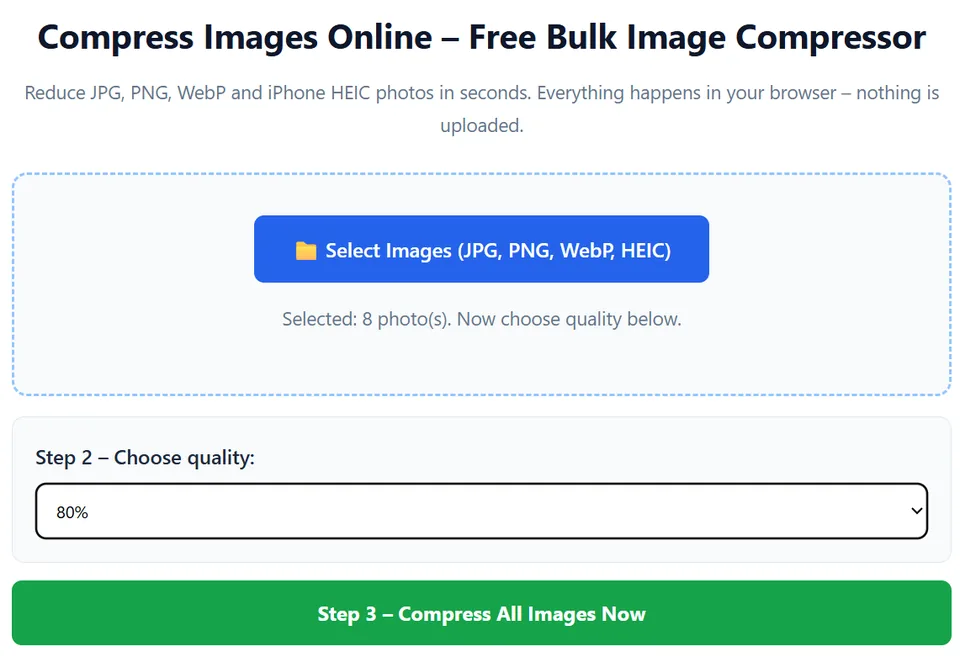
- Open CompressPicOnline in your phone browser, for example Chrome on Android or Safari on iPhone.
- Tap Select Images and choose a batch of photos. Smaller batches of around 20 to 50 photos are gentler on phone memory than hundreds at once.
- Choose 80% for a balanced result. Use 60% if you want stronger savings and the pictures are only for viewing.
- Tap Compress All Images Now and wait for the progress counter to finish.
- Review the Before and After sizes, then open a few results to confirm they still look good.
- Tap Download All Images (.ZIP), or download individual files. Your browser saves them to the Downloads or Files area, depending on the device.
Check the results before deleting anything
Open several compressed photos at full size and look at faces, text and detailed areas. If something looks too soft, repeat the process on the original at a higher percentage. Only when you are happy with the copies, and when the originals are safely backed up, should you remove the originals from the phone gallery. Many people find it easiest to work through one month or one album at a time.
What savings should you expect?
The saving depends on the photo. A large, detailed camera image usually shrinks more than an image that was already compressed by a messaging app. If a result would be larger than the original, CompressPicOnline keeps your original file instead, so you never end up with a bigger picture. Always read the actual After value instead of assuming a fixed percentage.
iPhone and Android notes
On iPhone, many photos are saved in the HEIC format. CompressPicOnline converts HEIC to JPG while compressing, which also makes the results easier to open on Windows computers and other devices. Our guide on bulk compressing photos on iPhone covers that workflow in more detail. On Android, most photos are already JPG, although some cameras can save other formats, and the tool accepts JPG, PNG, WebP and HEIC.
What you should not compress
- Irreplaceable originals that you may want to print large or edit professionally.
- Photos of documents where small text must stay readable. Use 80% or higher, or keep the original.
- Pictures you have not backed up anywhere else.
Other places where storage hides
If compressing photos does not free enough space, look at other categories too. Videos usually take far more room than pictures. Messaging apps can store large amounts of received media. Downloads folders collect old files, and screenshots pile up. Your phone settings include a storage screen that shows which apps and categories are using the most space, which helps you decide where to clean first.
Build a simple routine
Instead of waiting until the phone is full, make compression part of a monthly habit. Once a month, pick the album or date range that has grown the most, back it up, compress a batch of copies, check them, and then clear the originals you no longer need on the phone. Small, regular clean-ups are less stressful than a panicked deletion session, and they reduce the chance of removing something important by mistake. Turn off automatic saving of received media in messaging apps if you rarely look at those pictures.
Common mistakes to avoid
The biggest mistake is deleting originals before checking the compressed copies. The second is compressing a photo that was already heavily compressed, which can make it look worse with little saving. The third is trying to process a huge batch on an older phone, which can make the browser slow or restart. Work in smaller groups, keep your backups, and take your time on photos that matter to you.
Compression or cloud backup?
Compression and backup solve different problems. Backing up protects your photos if the phone is lost or damaged, while compression makes the files smaller. Many people use both: they keep full-quality originals in a backup location and keep lighter compressed copies on the phone for everyday viewing and sharing. Whichever approach you choose, make sure at least one full-quality copy of every important photo exists somewhere you trust.
Frequently asked questions
Will compressing my photos make them look worse?
Slightly, because the compressed copy stores less detail. At a balanced setting the change is usually hard to see on a phone screen, but you should check your own photos before deleting the originals.
Are my photos uploaded to your server?
No. The compression happens inside your browser, so your photos stay on your device.
Can I compress hundreds of photos at once?
It depends on your phone memory. Working in smaller batches is more reliable, and it also makes it easier to check the results.
👉 Open the free image compressor
Further reading
Independent references if you want to go deeper: