Compress Images for Word, PowerPoint and Google Docs
By Yasir, Lahore · Updated October 21, 2026 · All guides
You finish a report or presentation, try to email it, and the attachment is too large. In most cases the text is not the problem. A document or slide deck with a handful of uncompressed phone photos can easily reach tens of megabytes. This guide explains why that happens and how to keep the file small by preparing your pictures before they go in.
Why documents get so big
When you insert a picture into a document, the file usually stores that picture inside itself, often at close to its original size. A photo taken with a modern phone camera can be several megabytes on its own, even if you display it at the size of a postage stamp on the page. Ten such photos in a Word file or a slide deck add up quickly, and screenshots saved as large PNG files can add even more.
The best workflow: compress first, insert second
The easiest way to avoid a bloated file is to compress your pictures before you insert them. That way the document never contains the oversized version in the first place. It also works the same in every app, whether you use Word, PowerPoint, Google Docs, Google Slides, or any other editor.
- Collect the pictures you plan to use in one folder or album on your device.
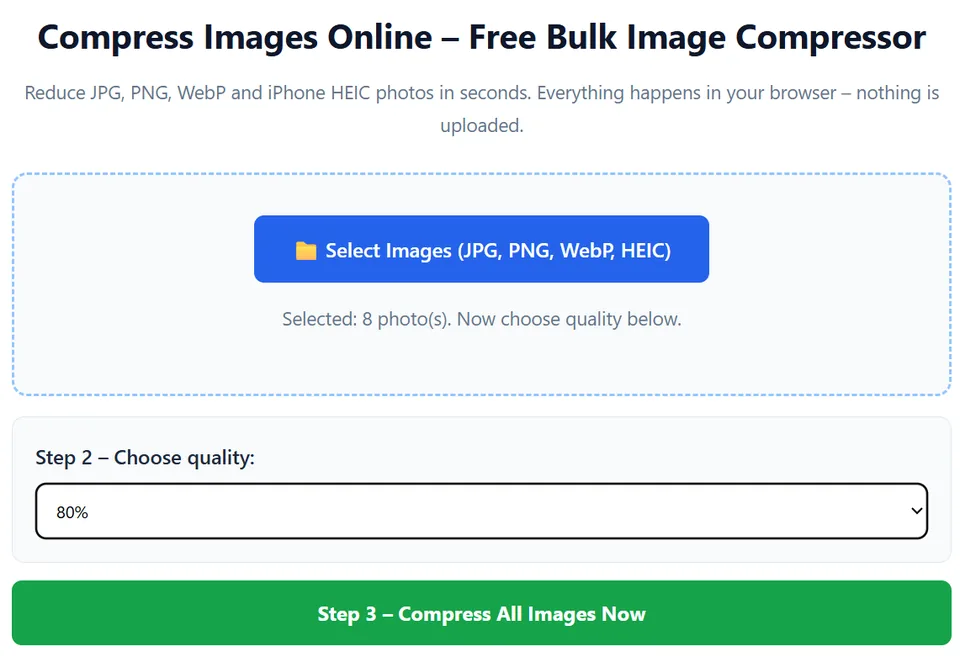
- Open the free image compressor and select all of them at once.
- Choose 80% for photos that appear large on the page, or 60% for smaller pictures and slides that will only be viewed on a screen.
- Press Compress All Images Now, check the Before and After sizes, and download the results as a ZIP.
- Unzip the folder and insert the compressed pictures into your document.
Which setting for which kind of picture?
- Photos shown large or printed: 80% keeps good detail while reducing size.
- Photos shown small or on slides: 60% is usually enough for screen viewing.
- Screenshots with text: use 80% or higher so the writing stays crisp, and check the result at full size.
- Logos and diagrams with transparent areas: keep the original PNG, because our tool outputs JPG and fills transparent areas with white.
Using the built-in compress feature
Microsoft Word and PowerPoint include a Compress Pictures command on the Picture Format tab. It lets you reduce picture resolution for the pictures already inside a file, with options aimed at print, web or email use. It is handy when you have inherited a large document and do not have the original images. Compressing before you insert still gives you more control, because you can check each result and keep the originals separate.
What about Google Docs and Google Slides?
Google Docs and Google Slides generally keep the pictures you insert at their uploaded size and do not offer a simple compress command, so preparing the pictures beforehand is the most reliable approach. Smaller pictures also help documents open and sync faster, especially on a slow connection.
Fixing a document that is already too big
If the file is already too large, you have two choices. The quick one is to use the built-in compress command in Word or PowerPoint. The more careful one is to save the pictures out of the document, compress them with the tool, and replace them in the file. That takes more time, but it is useful when picture quality matters, for example in a proposal or a printed handout. Keep a copy of the original document before making changes, in case you want to go back.
Screen use versus printing
Pictures that will only be viewed on a screen can be compressed more than pictures that will be printed. If you plan to print a document on paper, especially with large photos, use a higher quality setting such as 80% or 92% and test one printed page before you print a whole batch. Remember that compression removes detail permanently, so keep your originals.
Check the size before you send
After you finish, look at the final file size in your file manager. Email providers set their own attachment limits, which are often somewhere around 20 to 25 megabytes, but you should confirm the limit for your provider. Our guide on compressing images for email goes into more detail. If the file is still too large, compress the pictures a little more or share the document through a cloud link instead of an attachment.
Name and organise your pictures
A little organisation saves time later. Keep the originals in one folder and the compressed versions in another, and add a short word such as "web" or "doc" to the compressed file names. That way you can always return to the full-quality original if you need a print copy or a new crop. When several people work on the same document, agree where the original pictures live so no one has to hunt for them.
Common mistakes to avoid
The most frequent mistake is compressing a picture that was already small, which brings little saving and can lower quality. Another is stretching a small picture to fill a large area on the page, which looks blurry no matter how it is compressed. Also avoid replacing your only copy of a picture with a compressed one. Compress copies, keep originals, and view the finished document at full size before you send it.
Frequently asked questions
Will compressing the pictures change my text or layout?
No. If you compress pictures before inserting them, the text and layout are unaffected. Only the file size of the pictures changes.
Is 60% too low for slides?
For slides viewed on a laptop or phone it is often acceptable, but check a few pictures at full size. Use a higher setting when slides contain fine text or will be projected on a large screen.
Do I need to install anything?
No. CompressPicOnline runs in your browser, and your pictures are processed on your own device rather than uploaded.
👉 Open the free image compressor
Further reading
Independent references if you want to go deeper: